
MDG20Error Code List
Card Dispenser Error
Error Code | Description | Solution |
0 | The incorrect connection to card dispenser leads to abnormal communication. | Check the connection to card dispenser |
1 | Channel Choking | Check if there is a card stuck in the card dispensing channel. |
2 | Recycle tray is full | Check if the recycle tray is full |
5 | A card is in the dispensing channel or the card dispenser sensor is problematic. | Check if there is a card stuck in the card dispensing channel. |
| No card in the card dispenser | Check if there are cards in the card dispensers |
9 | The card dispenser status is prepared | This is not an error code, but only describing the card dispenser status. |
In the previous testing, we didn't find this code displayed on the tablet. | ||
10 | Pre-issued card not ready | Power off the card dispenser and then restart it |
If it still doesn’t work, then change to another card dispenser | ||
11 | Admin key error | Reinject key. |
12 | Read card failed | Cards will be taken back by the dispenser and recycled. |
Nothing needs to be done. | ||
13 | Write card failed | Cards will be taken back by the dispenser and recycled. |
Nothing needs to be done. | ||
14 | Dispensed card not taken by user | Cards will be taken back by the dispenser and recycled. |
Nothing needs to be done. | ||
15 | Cash not enough | Insert more cash. |
Other Error
Error Code | Description | Solution |
Injection Key failed | Admin key injection page: key injection failed | Re-inject key |
Wrong SRC | Admin login page: enter wrong SRC | Re-enter SRC |
Please Injection Key | Global: No Admin key | Inject key |
Please Select Profile To Setup | Global: didn't setup with profile | Setup AVU with profile |
Reset Card Count failed Please try again. | Admin Page: Reset card count failed | Retry to reset card count |
Server Exception | Global: ask api failed | Try later |
Network Exception | Global: network error | Try later |
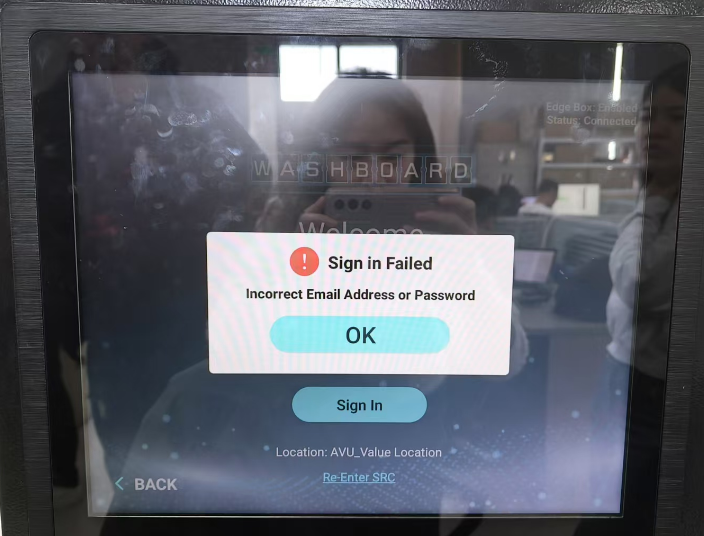
Sign in Failed | Admin login page: account or password wrong | Enter correct account and psw |
Sign in Failed | Admin login page: Account input is empty | Enter correct account and psw |
Sign in Failed | Admin login page: Password input is empty | Enter correct account and psw |
Setup failed | Admin setup page: Setup profile failed | Try to re-setup later |
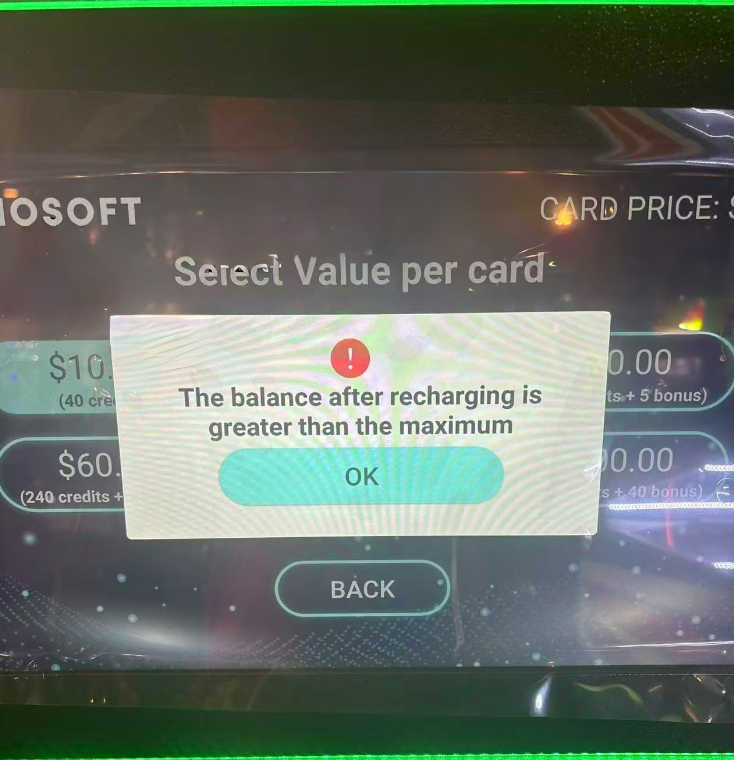
The balance after recharging is greater than the maximum | Select amount page: The selected amount exceeds the maximum card limit | Re-select refill amount |
IOException | Abnormal connection of the cash box | Check the connection of bill acceptor |
STACKER_FULL | Bill acceptor is full | Proceed cash collection |
OUT_OF_SERVICE | Bill acceptor out of service | Re-connect the bill acceptor/or take out the cash in bill acceptor, then retry |
Timeout. | Ultra VX Communication timeout | Re-connect the cable of VXT, then retry |
The trans is canceled by user. | Ultra VX New sale is canceled by user (only abnormal situations will occur) | Retry later |
Sale trans declined | Ultra VX New sale is reject | Retry later |
Reversal trans declined | Ultra VX reversal is rejected | Call service to reversal |
Sale busy. | Ultra VX transaction busy (abnormal) | Retry later |
Cancel Sale Request rejected after read customer’s card info. | Ultra VX has read the credit card information, and the cancel transaction requests rejected | User don't need any operation, tablet will proceed reversal later automatically |
Do Pos active failed | Ultra VX Pos startup failed | Retry later |
Sale failed | Ultra VX New sale transaction failed | Retry later |
Card Not Support. | Ultra VX read an unsupported card type | Change another valid card |
Failed to read card: Failure. | Ultra VX read card failed | Retry later |
Failed to read card: Timeout. | Ultra VX read card timeout | Retry later |
Read D62 card failed! | Ultra VX read D62 card failed | Check the D62 card |
Read F62 card failed! | Ultra VX read F62 card failed | Check the F62 card |
Admin Key Error | Tablet has admin/control card (mifare) and read key, but VXT is missing these keys. | Re-inject correct key |
Please select the number of cards | Select card count page: user doesn't select card amount | Select card amount |
The balance has reached the maximum | The card has reached the maximum limit and cannot be recharged again | Select the amount which sum with the existing balance will not exceed the maximum value won't exceed the max balance of the card |
Read M1 Card Failed! | Ultra VX read M1 card failed | Try again |
Different modes, please use the correct card | Location mode is mismatched. (Value or Credit modes under location option) | Use correct card mode under this location's machine. |
Terminal error. | Ultra VX is not ready | When VXT come back to idle, try again |
Terminal error. | Tablet has admin/control card (Mifare)write and read key, but VXT doesn't have these keys. | Inject key for VXT |
Card dispenser error! | Abnormal card issuer status (blocked card, empty card, full recycling bin, communication timeout, etc.) | Vendor needs to check card dispensed, refill card, clean recycle bin, check connection, check if there is blockage |
Please call service: ${phone_number} | ||
No public key, please check network and try again. | no public key | Check network, and try later |
PAYMENT FAILURE | The bill acceptor does not support the selected amount (in cases of less than $1) | Select another amount |
Cash payment is not supported for the selected amount. | ||
Reset Card Count successfully! | Admin Page: Click reset card count button | Click reset card count button |
There is None New Sale Transaction Processing. | Ultra VX: Report is requested but no new sale transactions. | Retry later |
The last New Sale Transaction didn’t get response, should get the last new transaction response firstly. | Ultra VX: Didn’t get the last new sale report. | Retry later |
Amount was accepted but the transaction was only partially completed. Failed to process $xx.xx. | Transaction failed and there is remaining money. The money was accepted in the AVU bill acceptor, but only partial amount is processed. | Refund the failed amount shown on the error screen to customers. That amount should be in the bill acceptor box since AVU accepted money. |
Failed to add funds to card. Reversing the pending amount to original payment card used. | CR: add funds failed. Reversal is processed. | Reversal is processed, user can try again after some time. |
Failed to add funds to cards. Please call service at 000-000-0000 for a refund. | Add funds failed. Bill acceptor has accepted the cash but cannot return to user. | Refund the whole amount to user since the amount is already inserted in bill acceptor box. |
REVERSAL DECLINED | CR refund failed | Call service |
FAILED TO DISPENSE CARD | Buy card with CR, no card dispensed | Retry later |
Failed to dispense card(s) or add funds. | Buy + add card with cash payment -> amount is accepted by bill acceptor but the transaction completely failed. | Refund the amount to customer considering amount inserted by them is already in the bill acceptor box. |
CASH ACCEPTOR IS FULL PLEASE CALL SERVICE 000-000-0000 | The bill acceptor is full when making transaction with cash | Call service |
Cash Collection Failed, Please Try Again. | The cash collection failed. | Try again. |
Please Setup AVU Touch First | The AVU Touch was not set up before. | Setup AVU Touch. |
Network Error, Please Try Again | The network disconnected. | Try again. |
Failed to Buy Card(s) Due to Network Error. Please conotact support | Failed to buy cards due to network error. | Call service. |
Scan QR Code Error
Error Code | Description | Solution |
001 | The Vendor ID does not match | 1. Enter the correct SRC |
002 | The Vendor ID is returned as blank.
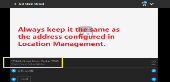
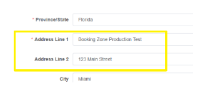
| Check if the address in Booking Zone order site is completely the same as the address configured in Location Management. Because the server doesn't support getting location info using address 2. |
003 | 1. The Booking zone data is abnormal | 1. Contact Booking zone for further help |
Troubleshooting
Tablet Issue
Issue | Possible Reason | Steps to Resolve |
Tablet unresponsive. | The navigation bar is hidden | 1. Tap the "KIOSOFT" logo five times consecutively to enter the admin menu |
The tablet keeps loading and displays as “processing” on the idle screen, when the card is being recycled (there are some problems on the cards). | The card recycle failed due to the following three reasons:
|
|
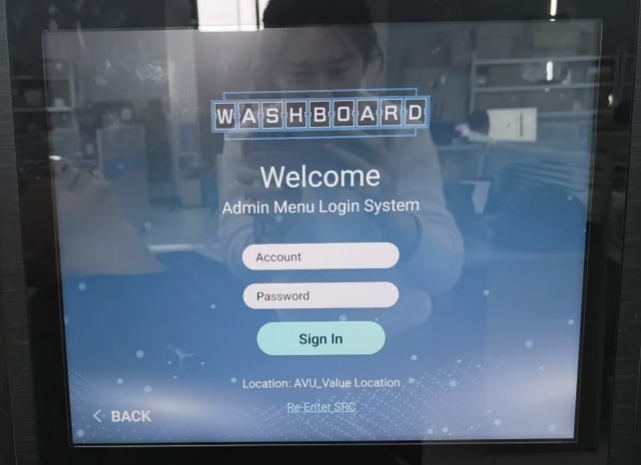
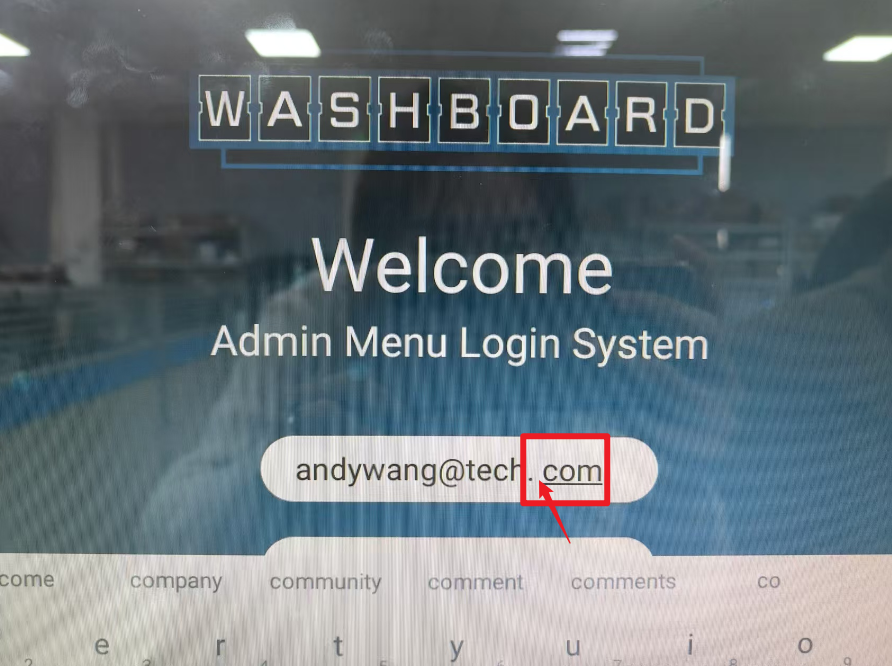
Sign in Failed error occurred when logging in to the admin menu: Incorrect email address or password.
| There might be an extra space in the entered email address or password.
|
|
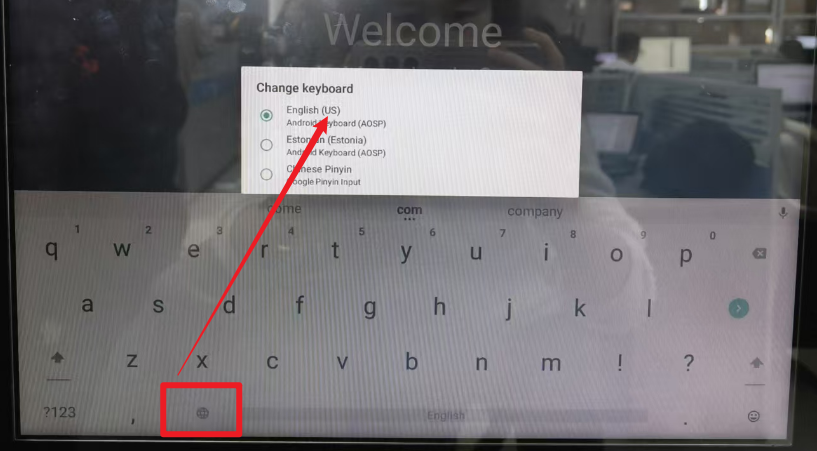
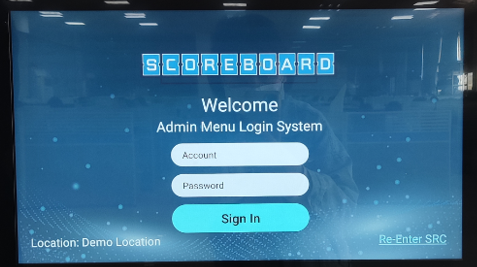
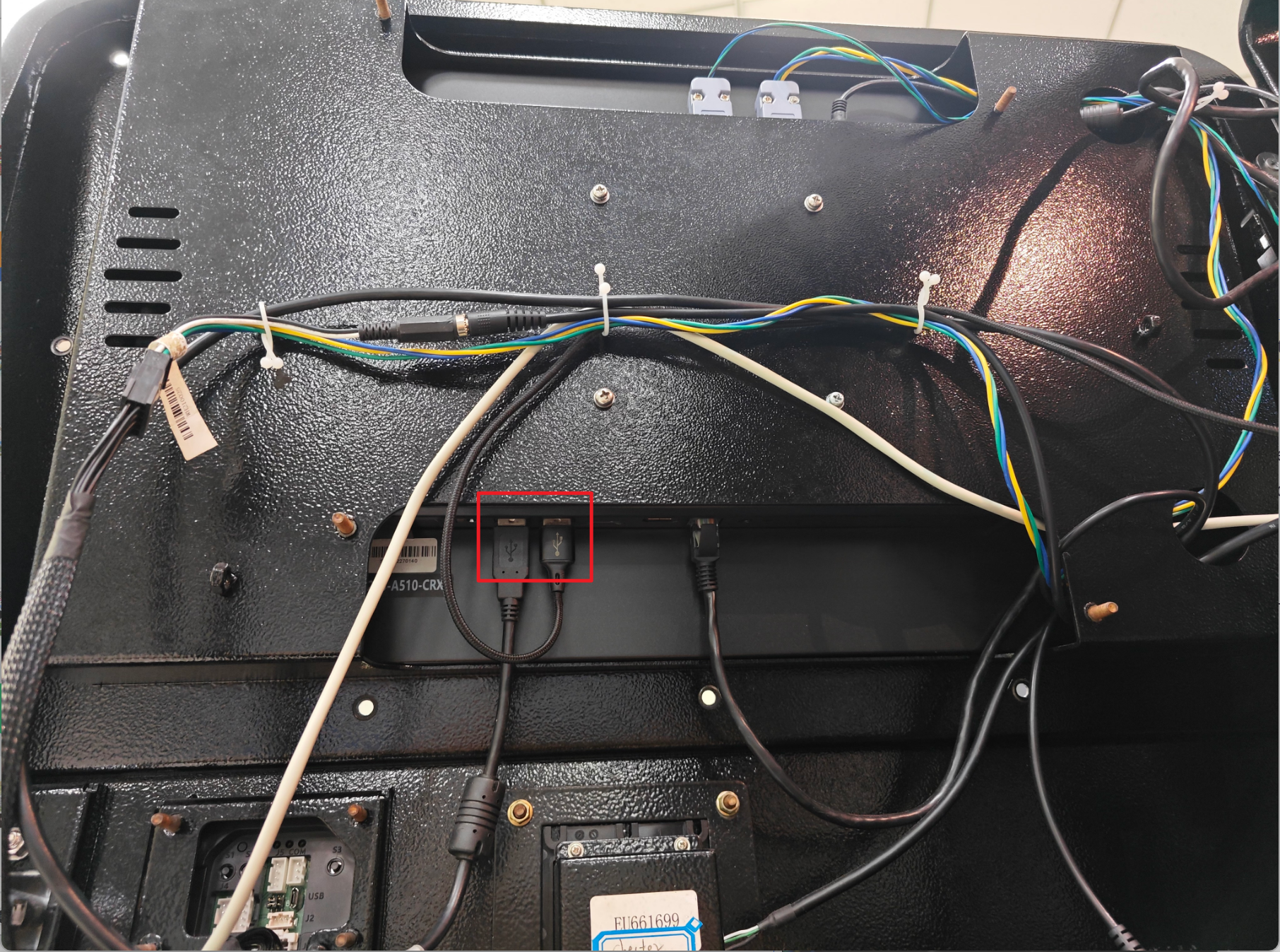
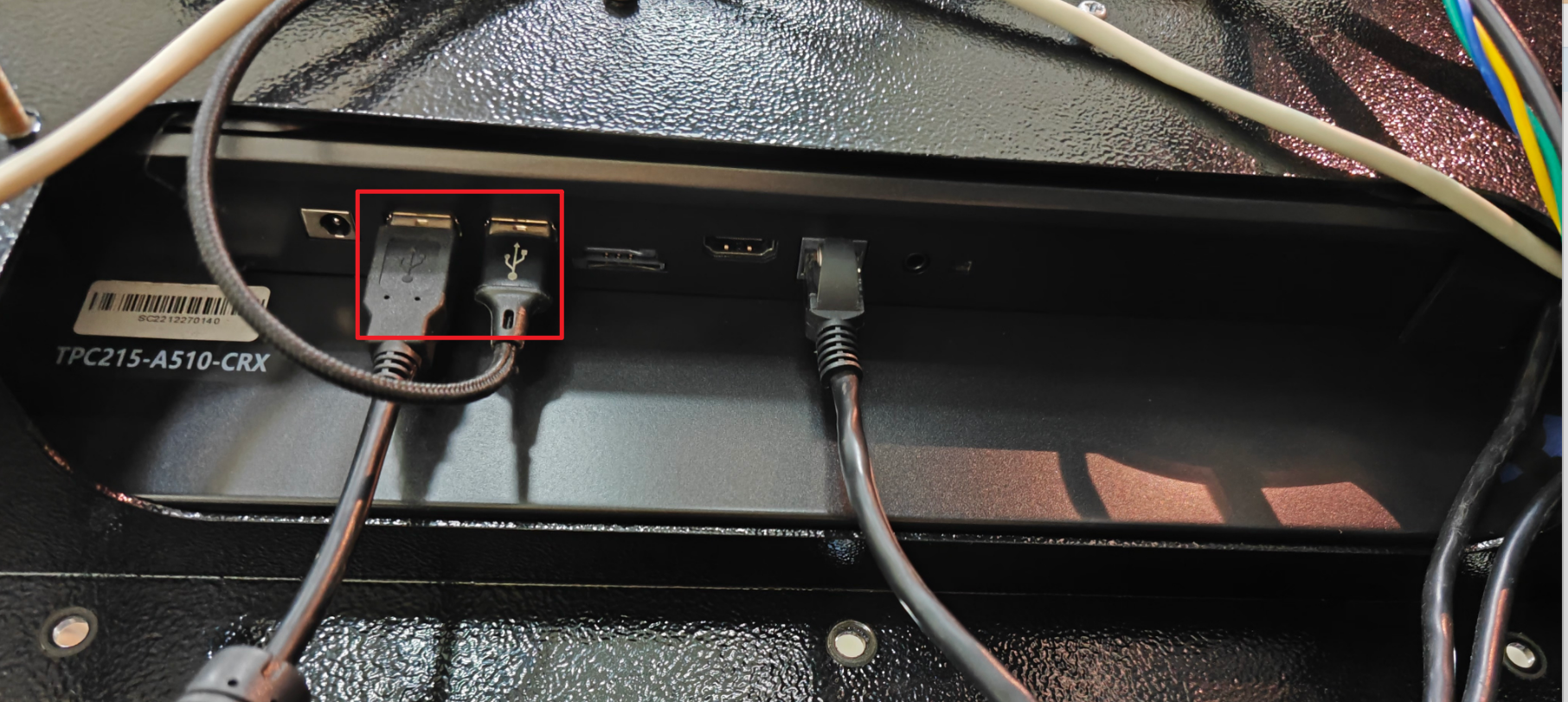
When tapping the KioSoft logo in the top-left corner of the idle screen five times in succession, the system redirects to the Admin Login page. However, the keyboard fails to appear, preventing the input of account credentials.
| This issue happens on some AVU tablets. | For VC 21 Gen2
|
Condensation can appear under the tablet’s screen when the kiosk is placed in direct sunlight or in an unsuitable environment.
| Exposure to sunlight or heat can cause moisture to build up inside the screen, leading to visible condensation. | For the details, please refer to the document: How to Fix Condensation Inside the Tablet Screen |
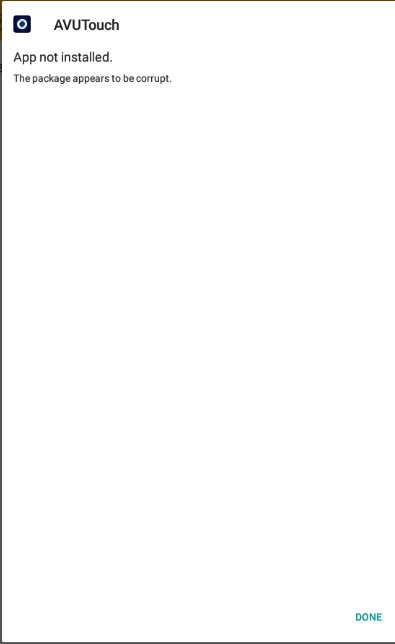
When users have installed a wrong version in the Tablet, and meanwhile, want to install an old version without uninstalling that wrong one, an error message will prompt “The package appears to be corrupt”.
| / | Uninstall the existing version and install the downloaded version. |
Buy Card Issue
Issue | Possible Reason |
|
Card Dispenser doesn't dispense cards, but the payment is successful. | A card might fall and get stuck in the card dispensing channel when adding cards. | Check if there is a stuck card and remove it.
|
Profile Error: The card dispenser type is set as "Single" instead of "Dual" under CCM -> Price and Config tab | 1. Go to CCM-> Profile Builder->Universal->Universal AVU-> Price and Configuration ->Dispenser Config -> Dispenser Type | |
Profile Error: The display timeouts configured in CCM are more than 60. | 1. Go to CCM->Profile Builder->Universal->Universal AVU->Price and Configuration->Basic Configuration->Basic Config->Display Timeouts | |
Card was dispensed but funds were not added. | Network issue. | 1. Tap the card on VXT to register it. |
1. The Key card is incorrect, such as not belonging to the vendor of this machine | 1. Reinject the Key information | |
Card was dispensed and then taken back in. | 1. The card has been registered before in another Vendor ID. | 1. Use blank Cloud cards |
It doesn't dispense the expected number of cards according to the paid amount. | 1. The metal weight is not put into the card dispenser. | 1. Put the metal weight in place |
Fail to pay in Cash because the “Cash” button is gray. | It has reached up to the max cash collection quantity. | Perform Cash collection via KLM and collect the cash from the Bill Acceptor. |
Card dispensing is slow. | 1. The payment was made via Cash, but the cash amount didn't cover the payment amount. | Tighten the screw.
|
An error message prompts “The balance after recharging is greater than the maximum” when buying cards.
| The location mode is changed on Washboard. |
|
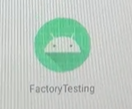
An error appears when buying cards after opening factory test app. | The factory test app isn’t killed. | 1.Click FactoryTesting on the homepage.
2.Tap the button to exit pages.
3.Press on the “FactoryTesting” page and swipe right to kill the page. 4.Power on again. |
 Steps to Resolve
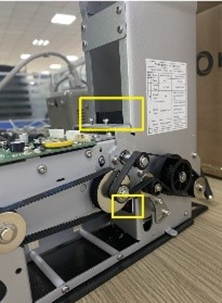
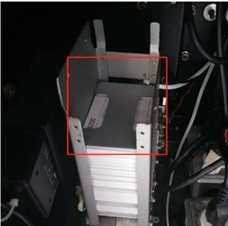
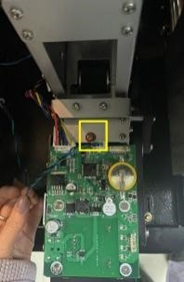

Add Value Issue
Issue | Possible Reason | Steps to Resolve |
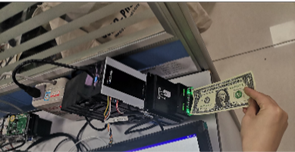
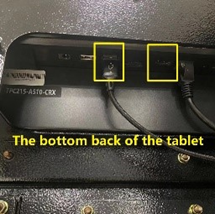
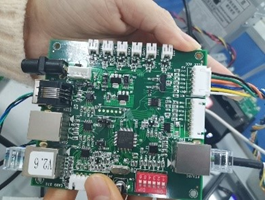
Bill Acceptor doesn't take cash in. | 1. The Bill Acceptor and Serial Expander are not connected well. 2. The Bill Acceptor is broken. 3. The USB port connecting the tablet and the Bill Acceptor is broken. 4. The Serial Expander is broken. 5. The Bill Acceptor is not powered on. | Reboot AVU Touch to see if the payment port of the Bill Acceptor can light up.
|
If the Bill Acceptor doesn't light up, check if the UBS port connecting the tablet and the Bill Acceptor works.
| ||
Check if the Bill Acceptor data cable WH110021 is inserted properly. | ||
Replace the Bill Acceptor data cable WH110021. | ||
Replace the Serial Expander
| ||
The tablet displays that “VXT is still being prepared.” | VXT is being rebooted. | Wait for several seconds until VXT returns to the idle screen |
The payment failed with a Credit card. | VXT is not connected to the network. Note: From version 1.7.0.0, this issue has been fixed by adding Linux Box as a local server to proceed with Buy Card and Add Value transactions. | Reconnect the network of VXT. |
Check Balance Issue
Issue | Possible Reason | Steps to Resolve |
The tablet displays that VXT is still being prepared. | VXT is being rebooted. | Wait for several seconds until VXT returns to the idle screen |
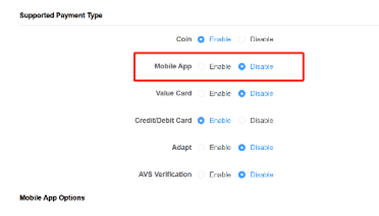
Check Balance failed and the Tablet reminds "Read card failed", "Terminal Error", or "Trans-communication error". | The "Mobile App" option in Location Management on Washboard is set as “Disable”. | Go to Washboard Vendor Portal -> Location Management -> Edit Location -> Options -> Mobile App -> Enable
|
Tap Card Issue
Issue | Possible Reason | Steps to Resolve |
Tap the card on VXT, and it reads “Card Type Not Supported”. | The card is not obtained through the “buy card” procedure of the Kiosk. | Buy a new card from the Kiosk and try again |
Card Type Error on VXT | 1. Mistakenly injected the reader profile on the VXT installed in the kiosk | 1. Check whether the Location ID and Vendor ID of VXT are the same as AVU Touch Tablet’s. |
Tap the card on VXT and the Kiosk shows a card type error or different site code. | 1. The card is in a mode different from the Kiosk. | Match with the location where the card was originally bought. |
Cash Collection Issue
A “Cash Collection” button is added to the Admin Menu to avoid kinds of issues happening when performing cash collection via KLM. Click this button, the tablet will perform the cash collection, reset the Bill/Coin logical count, and upload the report to Washboard. | ||
Issue | Possible Reason | Steps to Resolve |
The amount behind the decimal point cannot be collected by KLM. | The value defined in the CCM profile for the AVU Touch tablet is not a full dollar amount. | 1. Redefine the value as the integer multiple of 100 cents. |
The cash collection using KLM failed | If it shows “Device not Found”, the machine number is incorrect. | 1. Try to turn off the Bluetooth for a few seconds. |
Cash collection is performed repeatedly within a very short time. | Check if cash collections are performed repeatedly in a very short time. | |
The KLM account is logged out when the cash collection is performed. | Check if the KLM account is logged out. | |
Check Transaction Log Issue
Issue | Possible Reason | Steps to Resolve |
The kiosk transaction report was not uploaded
| The CCM fields are wrong OR the kiosk is OFF at the time of upload. | 1. Check the CCM profile |
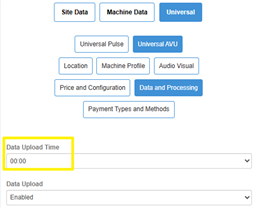
The transaction report has not been uploaded by the “Data Upload Time” defined in the CCM profile for the AVU Touch tablet. | 1. Wait until the transaction report is uploaded |
Remote Upgrade Issue
Please ensure that your system upgrade operation follows the guide below: | ||
If the table displays “System Update In Progress”, the upgrade action of the tablet is triggered. It is strongly suggested for you to update the system when a new version is released, so the known issues and bugs can be avoided. | ||
Issue | Possible Reason | Steps to Resolve |
The new version of the software cannot be used. | Unknown problems occurred during the software upgrade. | 1. Uninstall the old version first (Cash collection data, L02, L05, and R03 will lose.) |
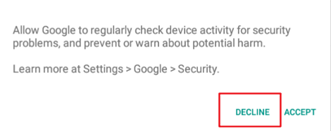
The Remote Upgrade is interrupted by a pop-up message asking for a security check. | Google Protect service is enabled. | Select "Decline" to continue the system update. |
Disable Google Play Service according to the instruction | ||
Upgrade the Tablet firmware under the instruction | ||
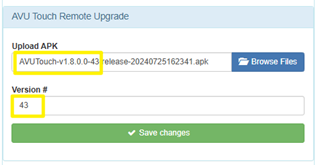
The tablet will not enter the upgrade section. | 1. The APK file was not uploaded to the Washboard server.
| 1. Upload the APK file to Washboard -> Settings |
CCM Configuration
Issue | Possible Reason | Steps to Resolve |
Failed to shift the location mode between Credits mode and Value mode. | The mode is switched in the location management info, but the CCM profile is modified on the original profile. | Create a new CCM profile from the beginning for the new mode |
A field is changed in the CCM profile, such as “enable Loyalty Program”, but it doesn’t take effect on the Kiosk. | Didn’t perform Profile Upgrade. | 1. Tap the KIOSOFT logo on the idle screen five times consecutively. |
The Price field is changed in the CCM profile, but it doesn’t take effect on the Kiosk. | The “Loyalty Program” is enabled. |
|
KioSoft Edge Box
Please refer to the Linux Box troubleshooting document via the link Troubleshooting Guide.
Bill Acceptor
Please note that the following troubleshooting steps are for the Coinco Vantage Cash Validator, specifically model VL61B41US04.
KioSoft’s Kiosks do not support any other cash validators.
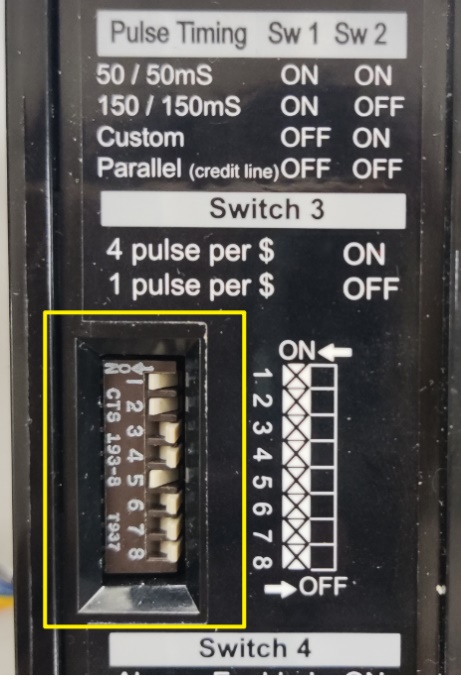
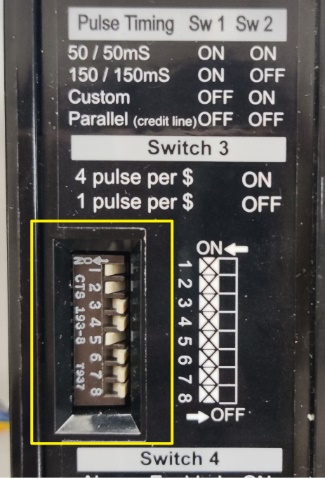
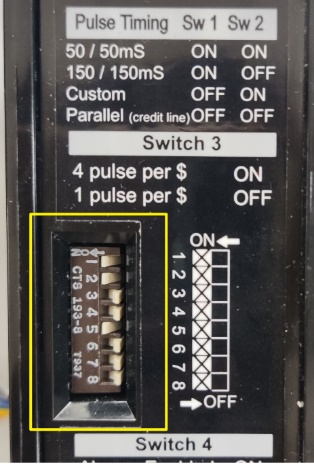
1. The back of the Bill Acceptor has dipswitches that set the configuration, these dip switches must be set with 1, 2, and 5, in the ON position. |
You must remove the cashbox first and then remove the Bill Acceptor completely from the Kiosk. Dip switches are located on the left of the Bill Acceptor. Dip switches 1, 2, 5 must be in the ON position facing left, with all remaining dip switches facing right.
|
2. Verify Physical Connections: Confirm the Bill Acceptor light is green. This light is located at the bottom of the lower housing. If the light is red, it is out of service. Diagnostic Flash Codes: 🟢Unit ok (Solid) 🟢x1 Coupon Teach 🟢x 2 Service Mode 🟡x1 Clean Unit 🟡x2 Service Unit 🔴x1 Cashbox Full 🔴x2 Clear Bill Path 🔴x3 Out of Service |
|
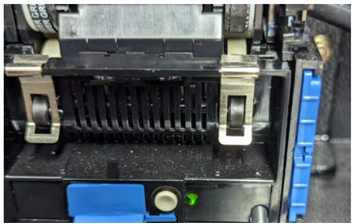
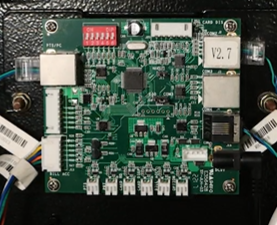
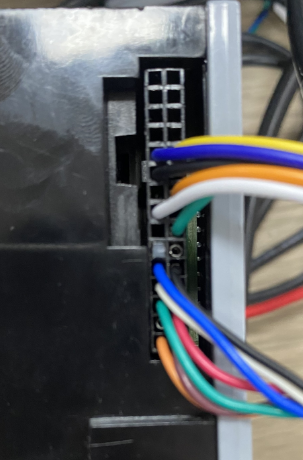
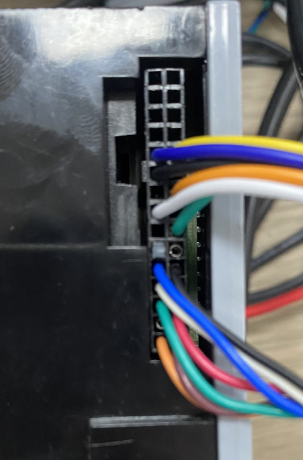
Locate the Bill Acceptor’s data cable, highlighted below. Confirm the cable is securely connected to the serial expander. |
|
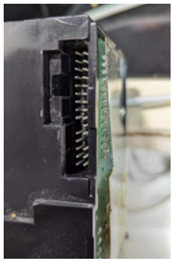
Follow the Bill Acceptor’s data cable (WH110029) from the serial expander to the Bill Acceptor and confirm the pins are aligned—it can easily be moved. |
|
Other Common Errors:
Issue | Possible Reason | Steps to Resolve |
The Bill Acceptor is not lighting up when receiving bills. | The cable in the back might not be plugged in all the way (all the pins need to be aligned and connected) |
|
Bill Acceptor received cash then returned it. | Make sure dip switch 5 is turned on (so should 1 & 2) on the back of the Bill Acceptor |
|
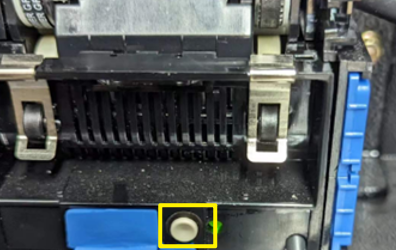
No error was received on the display, but the bills are still being ejected. | Check the Bill Acceptor’s programming manually and ensure that the Kiosk is programmed to receive all 4 bills, meaning that all 5 indicators should light up. Each light in the box represents a bill: Green Light 1 = 1 dollar Green Light 2 = 5 dollar Green Light 3 = 10 dollar Green Light 4 = 20 dollar Green Light 5 = Indicator Light |
If the Bill’s setting is incorrect, factory reset the Bill Acceptor. Press and hold the white settings button, meanwhile plug in the Bill Acceptor, then loosen the button and the Bill Acceptor will automatically factory reset. |
Bill Acceptor lights are on and taking money. Says the inserted value of zero. Add value of zero. | Dip switch 4 is in the ON position on the back of the Bill Acceptor. |
Turn it off. |
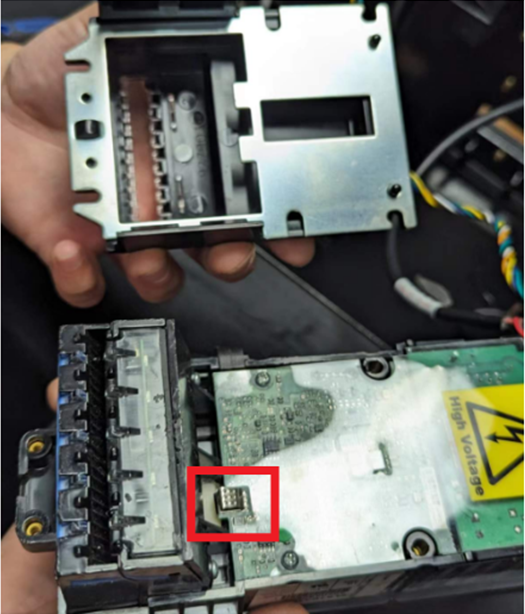
Bill Acceptor is shutting off after inserting one Bill. | Metal Tap. Inside the Bill Acceptor, shown in the red box on the right, is making contact. |
Cover it with electrical tape. |
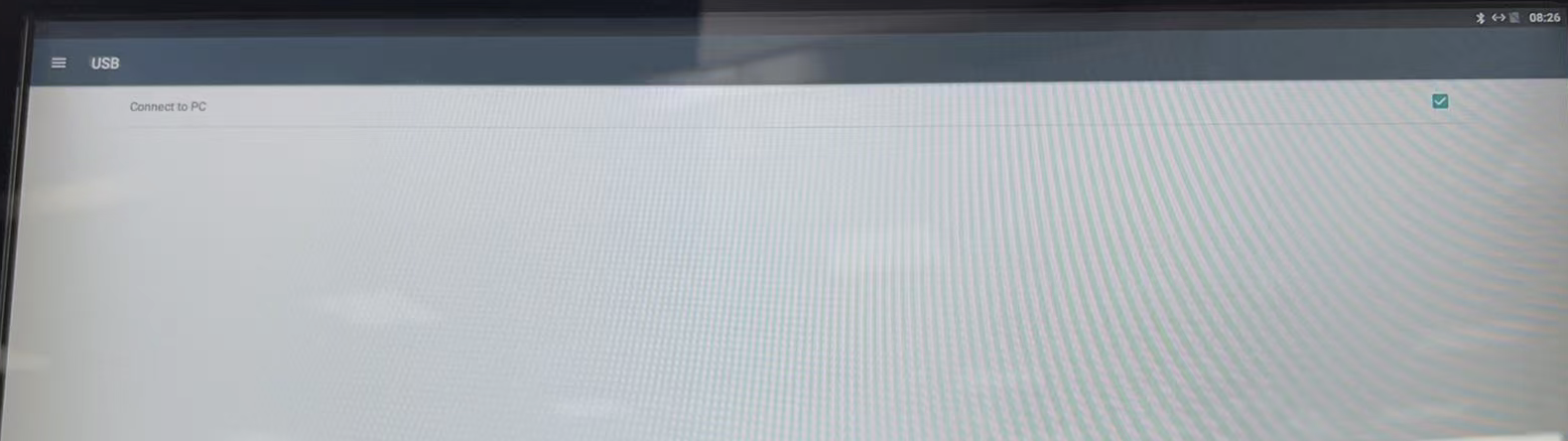
BA2 is in OK state, and BA1 is jammed or almost full. After inserting bills, the BA1 is full. The screen displays "Please insert Cash in another Bill Acceptor” but the BA1 still lights up and BA2 remains inactive. There is no BA switching happened. | The “Connect to PC status” is checked. | Please check Android Settings->USB->Connect to PC status. It must be unchecked otherwise the BA won't be switched.
|

The Pixel Issue
Issue | Possible Reason | Steps to Resolve |
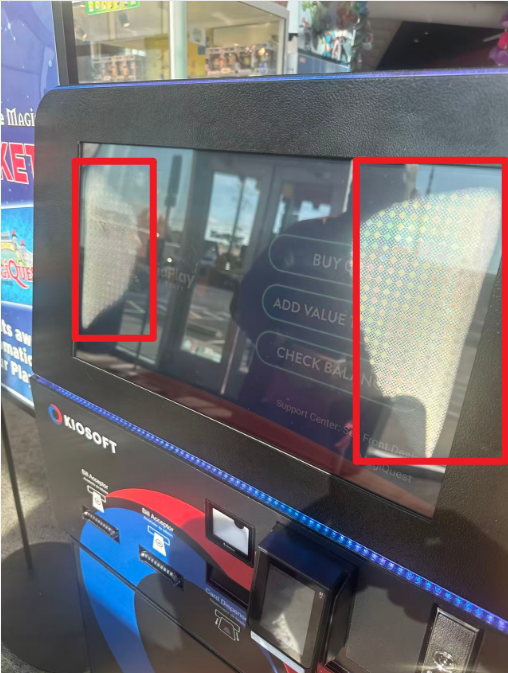
The pixel issue, like the following picture
| The parameters weren't updated. |
|

Network Checking Prompts
To reduce the possibility of transaction failure caused by poor network, network checking is added to AVU Touch from version 1.8.0. |
Power Off
The table below illustrates the prompt messages when the following parts are powered off. | ||||
Scenario | Operation | Prompt Message | Remark | |
Power Off | Modem | Buy Card | Register and add value failed. | / |
Add Value | VXT displays “Read Card failed” and AVU Touch displays “Terminal Error” when tapping Cloud-based card on VXT. | |||
Check Balance | VXT displays “Read Card failed” and AVU Touch displays “Terminal Error” when tapping Cloud-based card on VXT. | |||
Remote Command | Washboard prompts “Offline Status”. | |||
VXT | Add Value | AVU Touch prompts “Terminal Error, Ultra VXT is not ready now, please wait and try again”. | / | |
Check Balance | AVU Touch prompts “Terminal Error, Ultra VXT is not ready now, please wait and try again”. | |||
Remote Command | Washboard prompts “Reboot Kiosk Failed: Not Executed”. | |||
Linux Box | Buy Card | Prompt “No Public Key”. | / | |
Power off then Power on
If AVU Touch is powered off and then powered on, the kiosk will check the Bluetooth name to see if it is changed and correct it if it is changed. You will need to disconnect the network of AVU Touch and restart the kiosk to check if it will crash. | ||||
Scenario | Operation | Prompt Message | Remark | |
Power Off then Power On | Modem | Buy Card | Register and add value failed. | It takes about 2-5 minutes for the modem to restart and connect to the network successfully. |
Add Value | VXT displays “Read Card failed” and AVU Touch displays “Terminal Error” when tapping Cloud-based card on VXT. | |||
Check Balance | VXT displays “Read Card failed” and AVU Touch displays “Terminal Error” when tapping Cloud-based card on VXT. | |||
Remote Command | Washboard prompts “Offline Status”. | |||
VXT | Add Value | AVU Touch prompts “Terminal Error, Ultra VXT is not ready now, please wait and try again”. | The messages herein will prompt if these operations are performed before the successful initialization of VXT. | |
Check Balance | AVU Touch prompts “Terminal Error, Ultra VXT is not ready now, please wait and try again”. | |||
Remote Command | Washboard prompts “Reboot Kiosk Failed: Not Executed”. | |||
AVU Touch | Buy Card | Prompt “No Public Key”. | It takes about 2-5 minutes for the modem to restart and connect to the network successfully. | |
Add Value | VXT displays “Read Card failed” and AVU Touch displays “Terminal Error” when tapping Cloud-based card on VXT. | |||
Check Balance | VXT displays “Read Card failed” and AVU Touch displays “Terminal Error” when tapping Cloud-based card on VXT. | |||
Disconnect the Network
Please refer to the table below for the prompt messages and effects caused by the network disconnection. | |||
Scenario | Operation | Prompt Message | Remark |
Disconnect the VXT Network | Add Value | VXT displays “Read Card failed”. | / |
Check Balance | AVU Touch displays “Terminal error”. | ||
Disconnect the Android Tablet Network | Buy Card | If pay with Cash, the tablet will display “Remaining $xx.xx, Please call service.” | Card will be dispensed successfully but adding funds will fail. |
If pay with Credit | Card will be dispensed successfully but adding funds will fail. | ||
Report Upload | / | The transaction log will be saved locally. When the network is connected successfully, the transactions logs will be uploaded to the corresponding database. | |
(R03, L02, L05) |
|
| |
Inject Key | Inject Key failed. | / | |
Remote Command | Washboard prompts “Reboot Kiosk Failed: Not Executed”. | / | |
Loyalty Program | Click Buy card & add value select amount, the Loyalty program will not be clear (00:00, 06:00, 12:00,18:00), from the 1.8.0.0 version | ||
Remote Upgrade Profile | / | When the tablet connects to the network successfully, AVU Touch will upgrade the profile automatically if it is on the idle screen. | |
Reboot AVU Touch | Click “Buy Card” and the tablet will prompt “No Public Key”. | / | |
Remote Upgrade | / | / | |
Switch Language | It will not be affected by the network disconnection. | / | |
Disconnect the Modem Network (Both VXT and Tablet will disconnect from the Network.) | Buy Card | If pay with Cash and the network is disconnected after selecting the payment method, then the tablet will display “Remaining $xx.xx, Please call service.” | Card will be dispensed successfully but adding funds will fail. |
If pay with Credit and the network is disconnected after selecting the payment method, | Card will be dispensed successfully but adding funds will fail. | ||
Report Upload (R03, L02, L05) | / | The transaction log will be saved locally. When the network is connected successfully, the transactions logs will be uploaded to the corresponding database. | |
Add Value | VXT displays “Read Card failed”. | / | |
Check Balance | / | ||
Reboot AVU Touch | The tablet will display “Network error”. | / | |
FAQ
1. If a card is moved from Location1 to Location2, will it be recycled or be issued to start a machine? | ||
The card will not be recycled. | ||
2. What should I do if the AVU Touch app is deleted by coincidence? | ||